
How it works
Log in with the app on your phone, wherever you are.
DigiD Ghana works two ways, depending on where you are logging in: on the same phone that has the app, or on another device such as a computer. In both, you decide, on your own phone, and nothing happens without you.
Two ways to log in
Which one applies to you?
On the same phone
You are using a website or service on the phone that has the DigiD Ghana app. Choose “Log in with DigiD Ghana” and the app opens by itself.
On another device
You are using a computer or another device. The website asks for a verification code from your phone, shows a QR code, and your phone scans it.
On the same phone
Logging in to a service on your phone.
The shortest way. No code and no QR code are needed, because the website and the app are on the same device.
- 1
Sign in to the app first
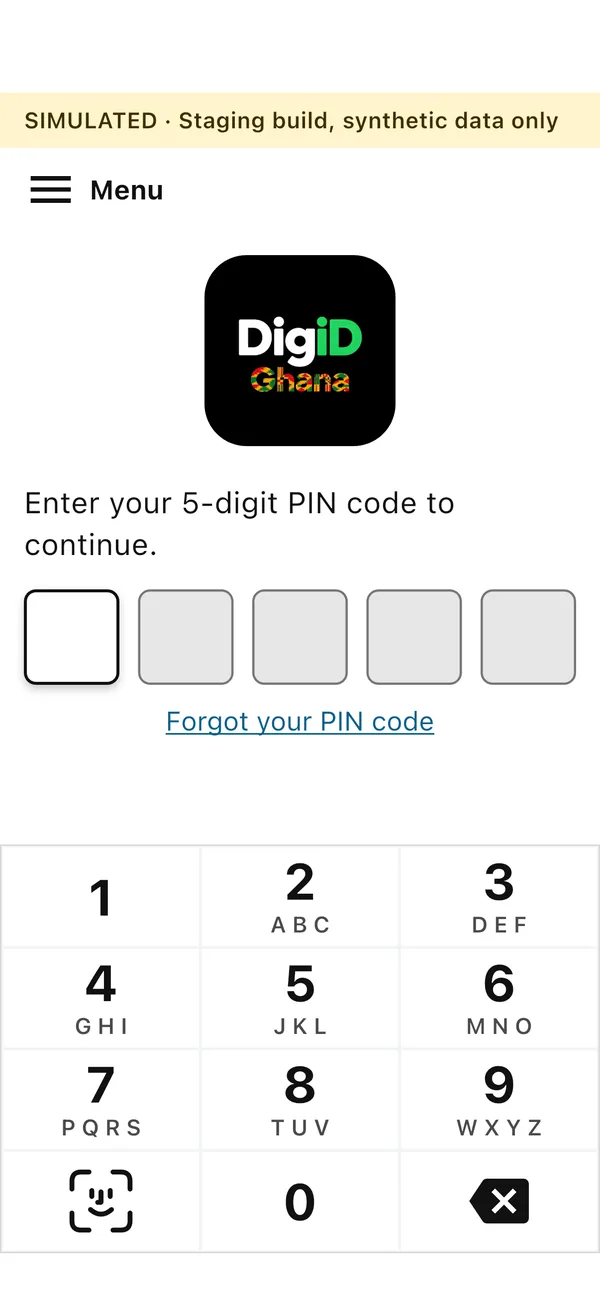
Open the DigiD Ghana app and sign in with your 5-digit PIN code. The app has to be signed in before it can log you in anywhere.
- 2
Open the service and choose DigiD Ghana
On your phone, open the website of the service you want to use and choose “Log in with DigiD Ghana”.
- 3
The DigiD Ghana app opens
Your phone switches to the DigiD Ghana app by itself. If you had not signed in yet, the app asks for your PIN code first and then carries on with your login.
- 4
Check which organisation is asking
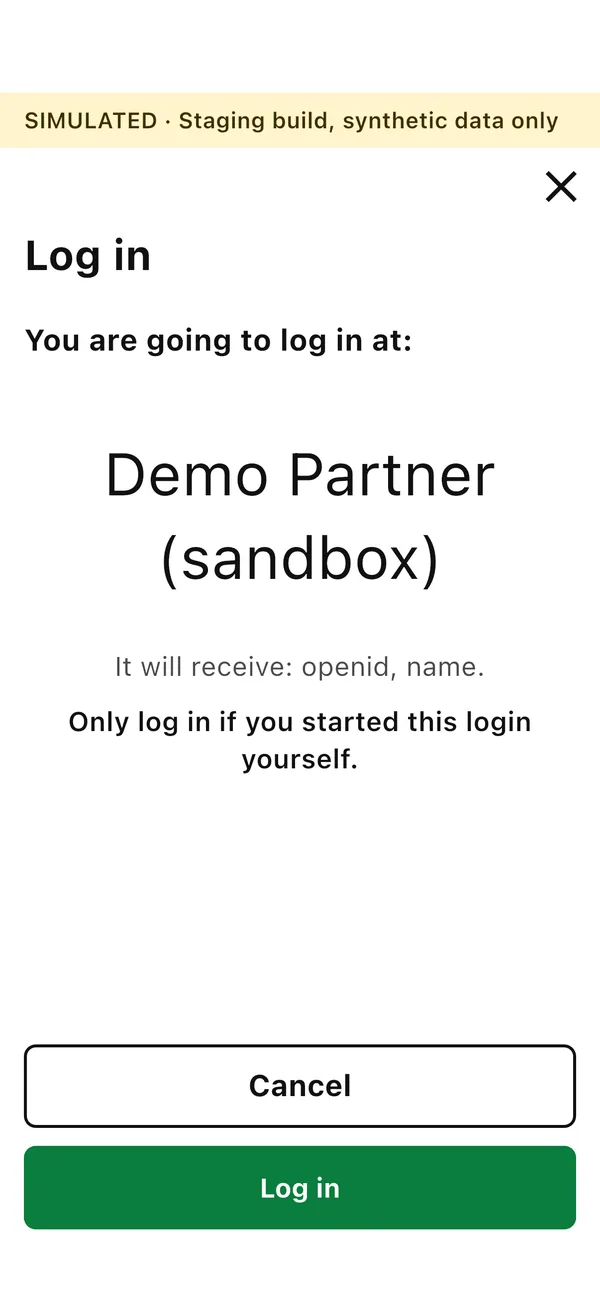
The app says “You are going to log in at:” and shows the name of the organisation. If it is not the one you expected, stop and choose Cancel.
- 5
Log in and confirm with your PIN code
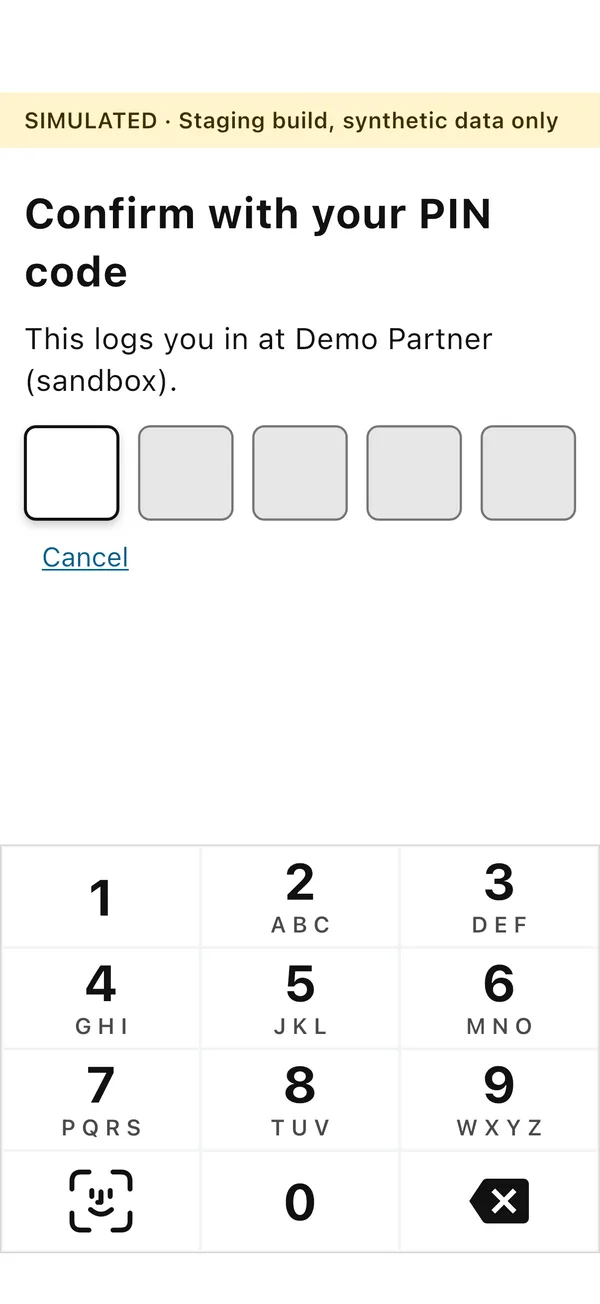
Tap Log in. The app asks for your PIN code. Once you have confirmed it, your phone sends the answer to the service.
- 6
Back in the service, logged in
You return to the website, which has received the result and lets you in.
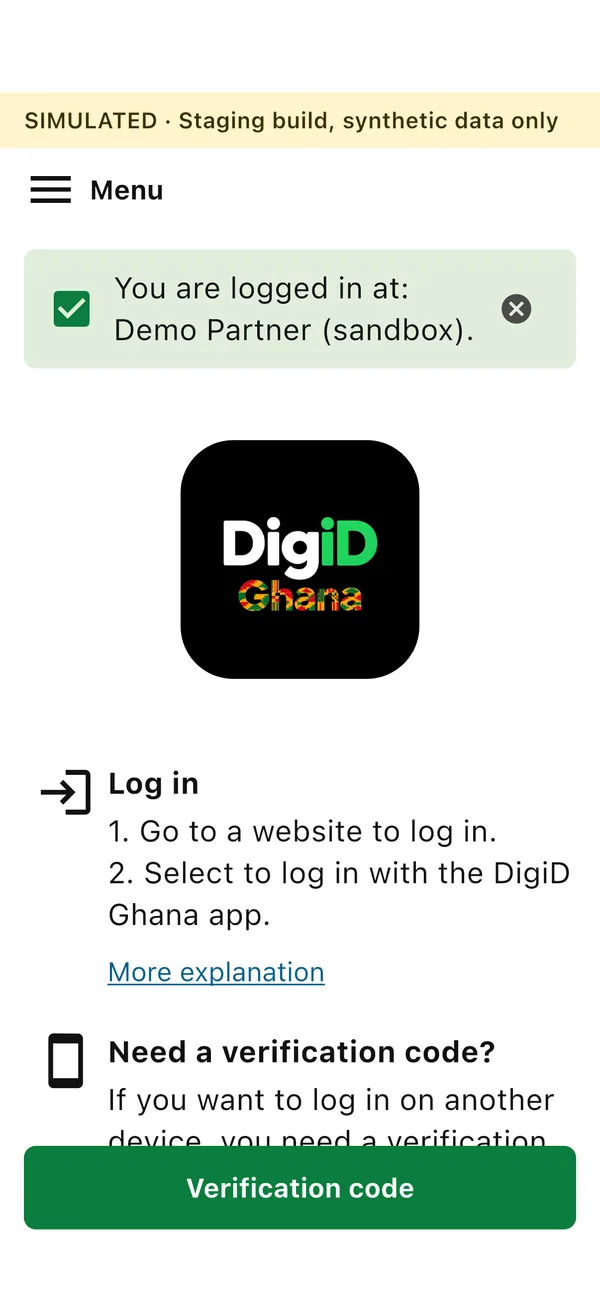

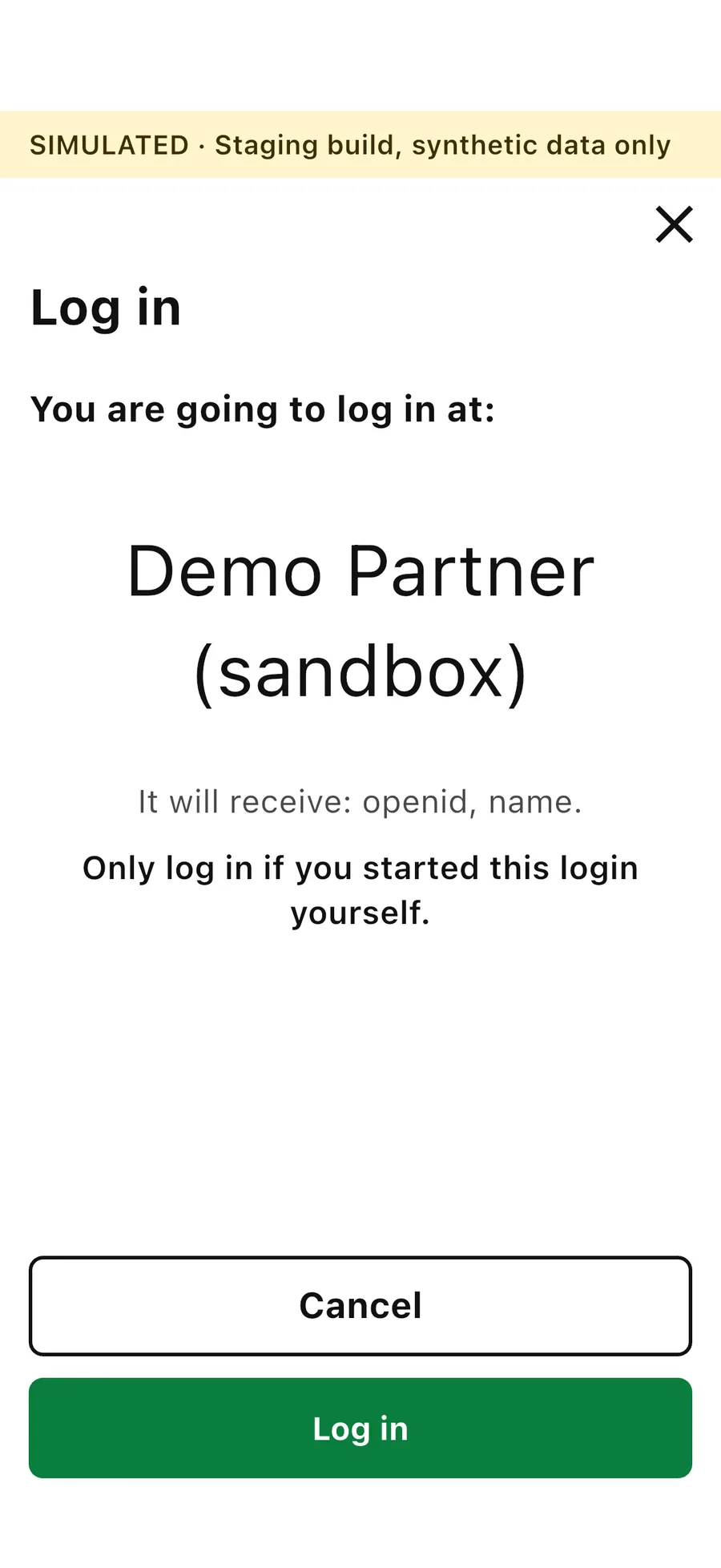
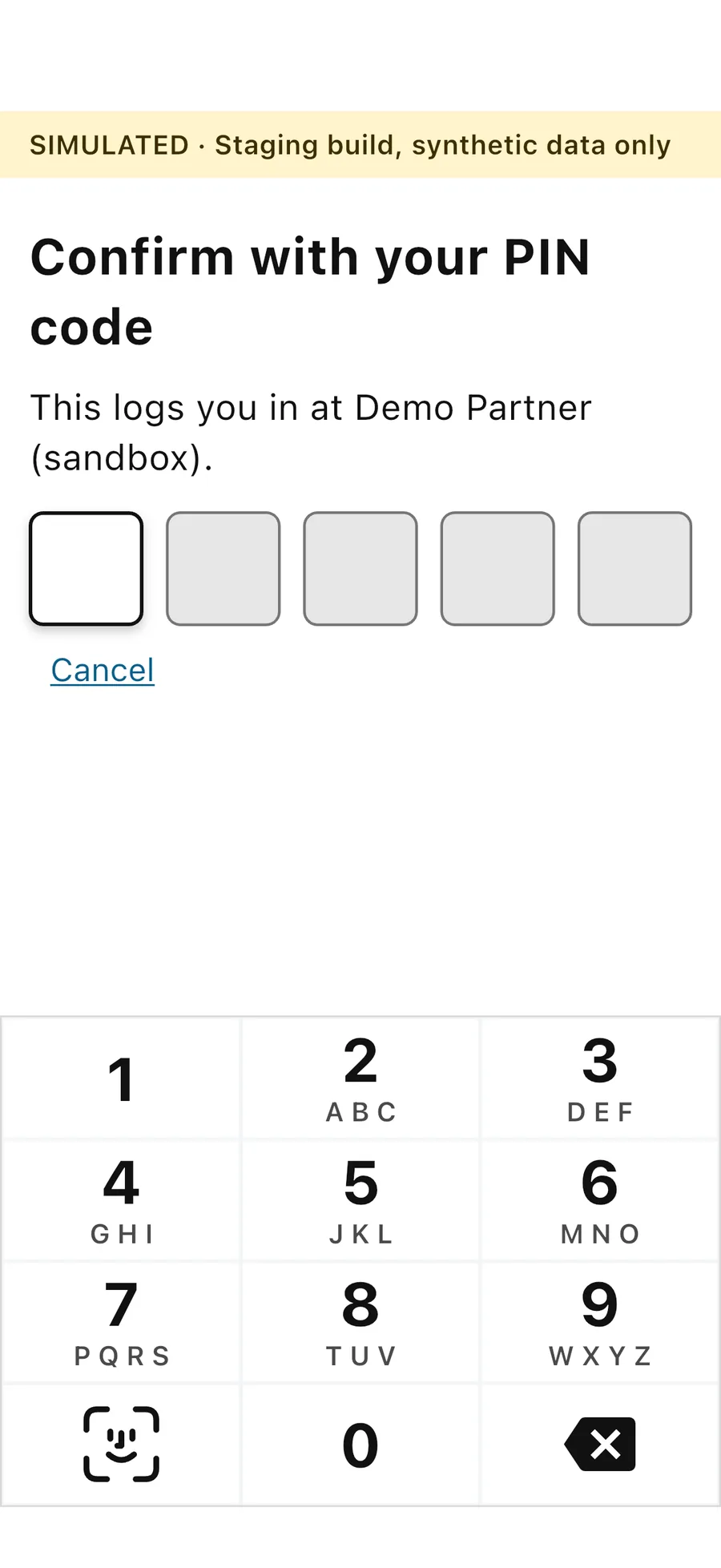
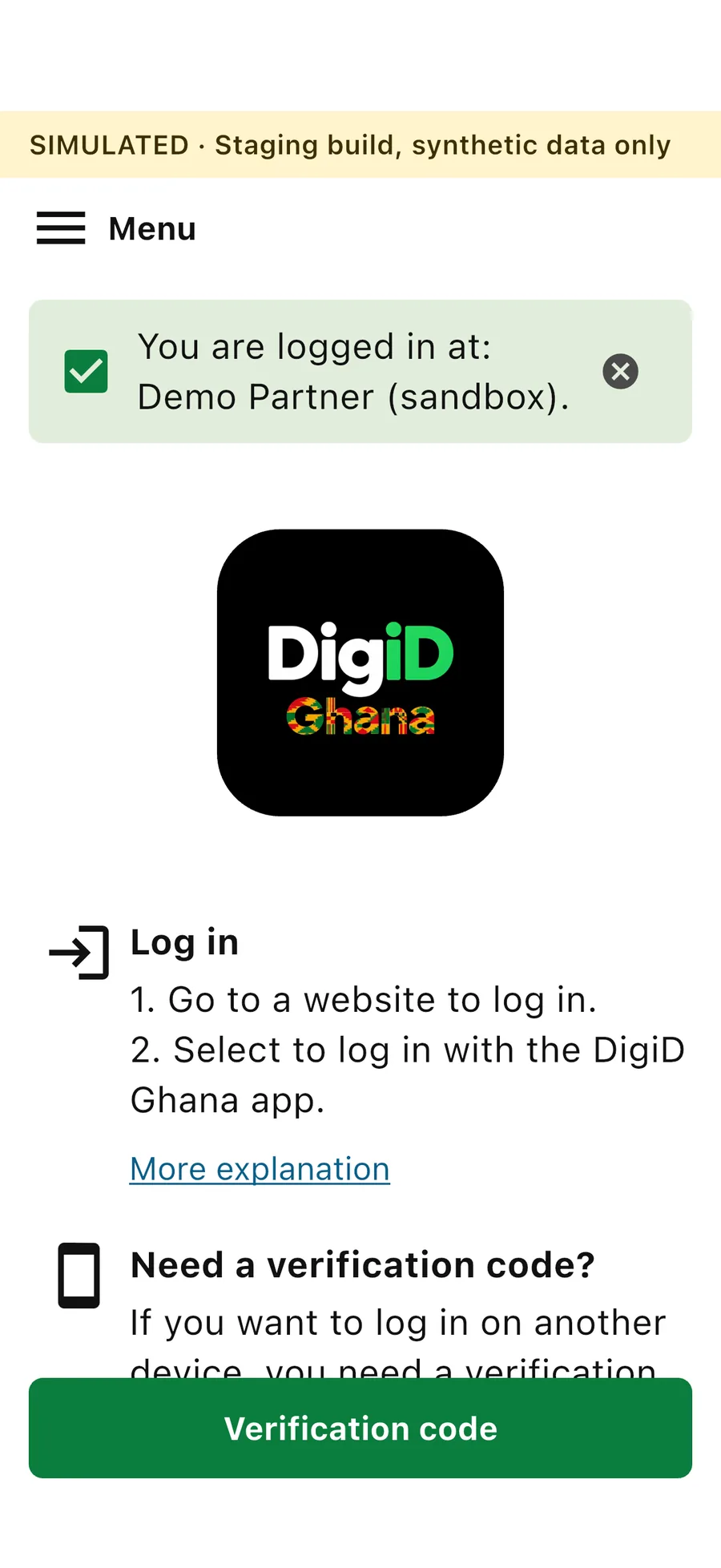
Screens from the DigiD Ghana test version, with invented data. The banner at the top says so. The camera picture on the Scan the QR code screen is an illustration.
On another device
Logging in to a service on a computer.
When you are not on your phone, your phone is the key. You use a short code and a QR code to connect the two.
- 1
Sign in to the app
The person opens the DigiD Ghana app and signs in with their 5-digit PIN code. This always comes first: the app has to be signed in before it can do anything.
- 2
Start with a trusted service
The person visits a participating website and chooses to log in with DigiD Ghana. On another device, the website asks for a verification code.
- 3
Connect with the app
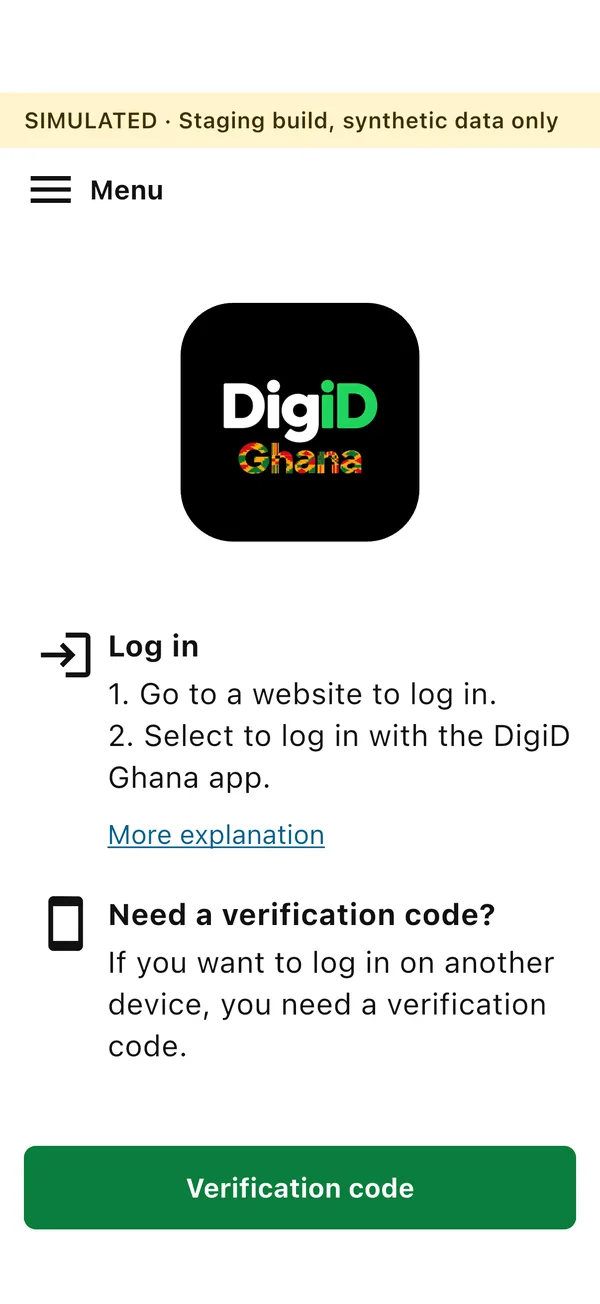
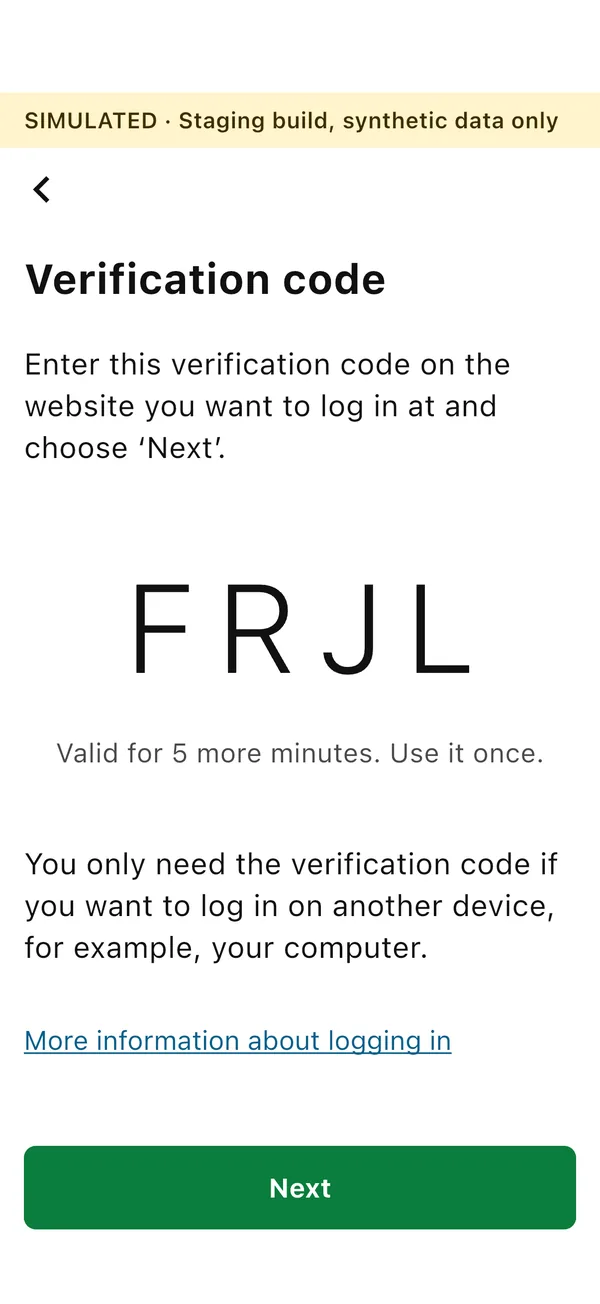
In the signed-in app, the person taps Verification code. The app shows a short code, which the person types on the website.
- 4
Scan the QR code
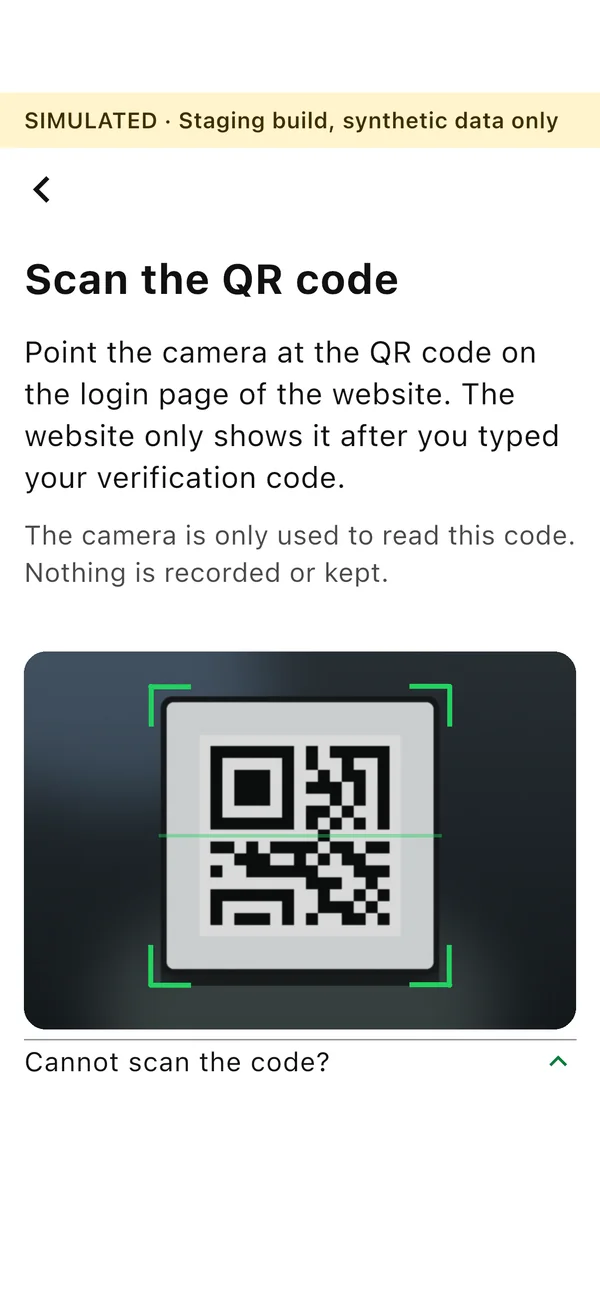
The website shows a QR code. The person taps Next in the app and scans it with the camera inside the app.
- 5
Verify and approve
The app shows which organisation the person is about to log in at. The person taps Log in and confirms with their PIN code.
- 6
Continue securely
The participating website receives the authentication result through the established secure integration and grants access according to its own authorisation rules.
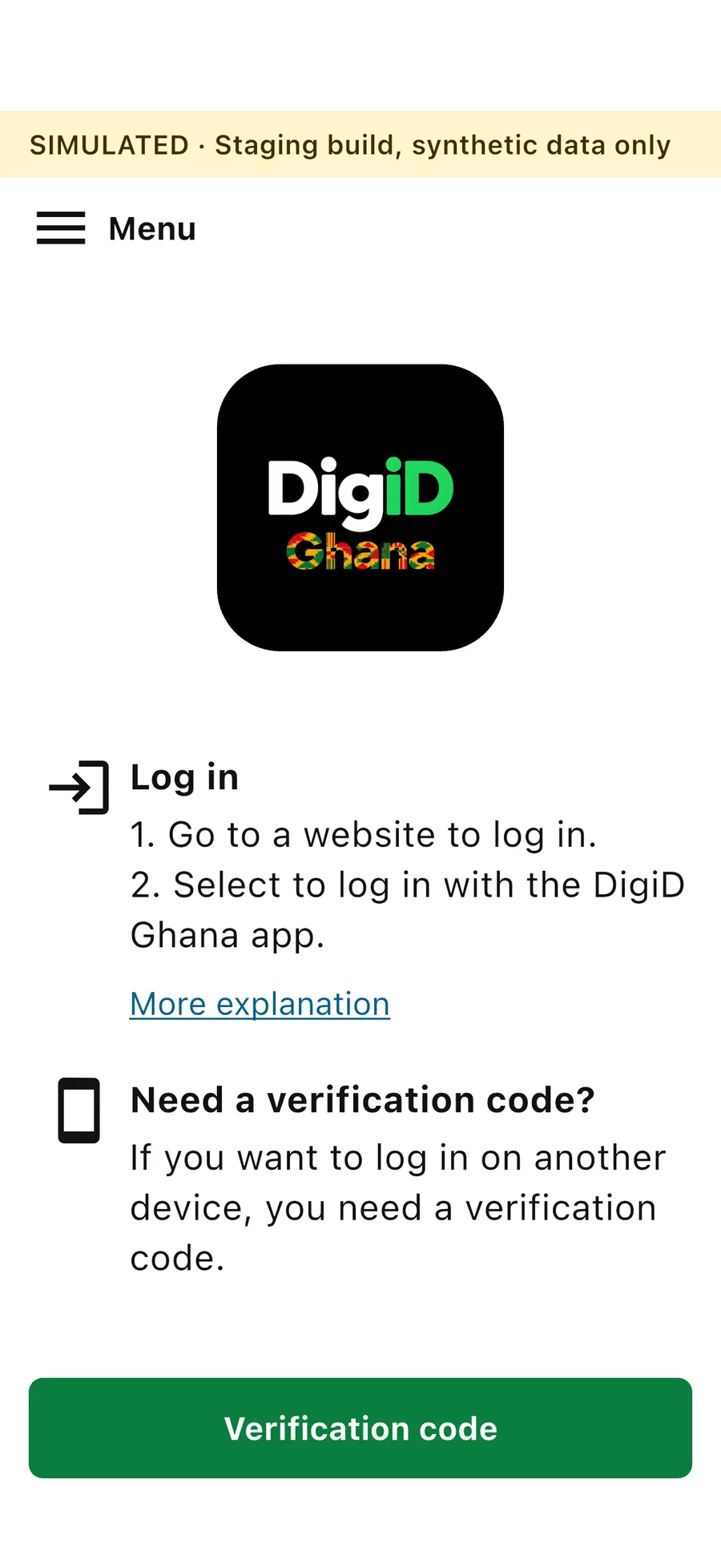
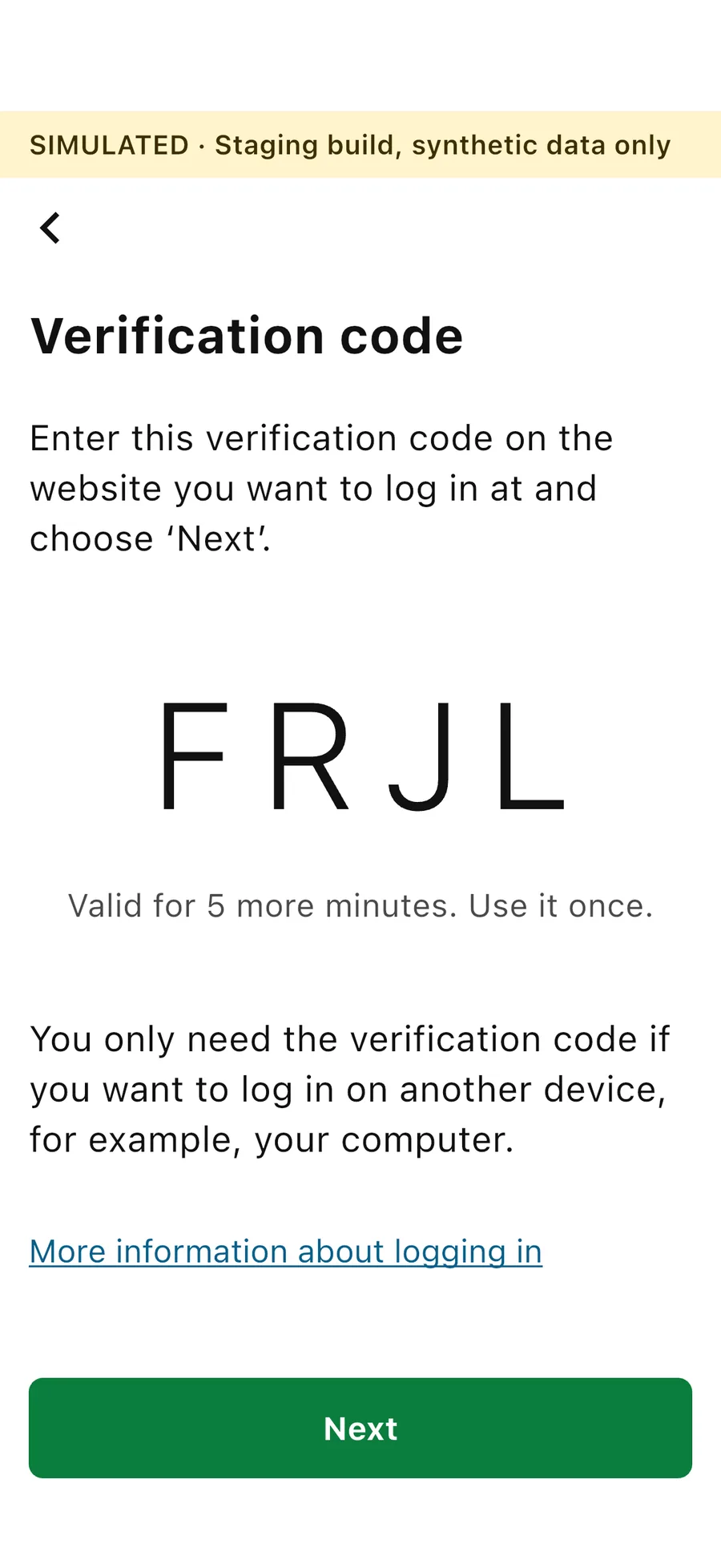
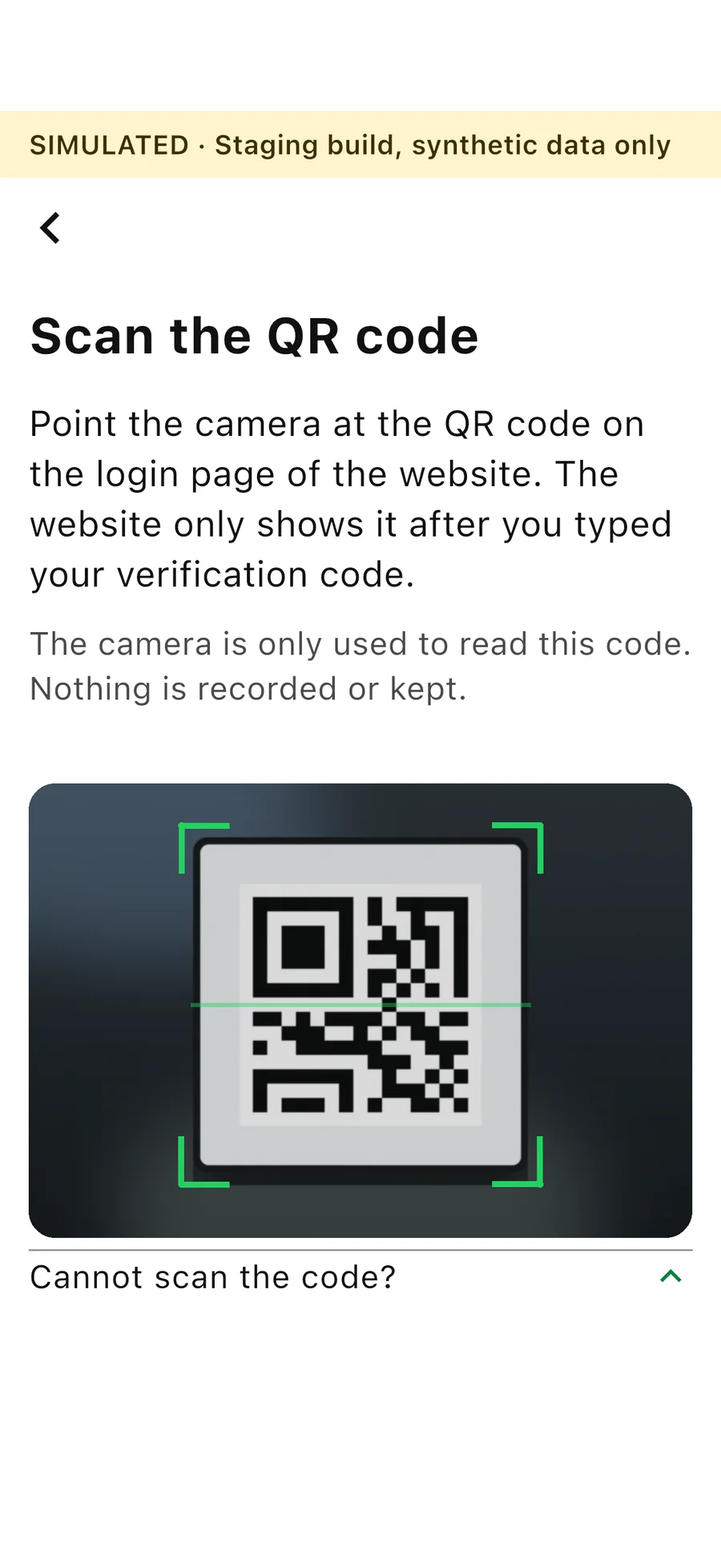
Every phone screen here is a real screenshot of the DigiD Ghana test version, with invented data. The camera picture on the Scan the QR code screen is an illustration.
- 1
Sign in to the app first
Open the DigiD Ghana app on your phone and sign in with your 5-digit PIN code. You can only get a verification code after you have signed in to the app.
- 2
Choose “Log in with DigiD Ghana”
On the website on your computer, choose to log in with DigiD Ghana. The website asks you for a verification code.
- 3
Get your verification code in the app
In the signed-in app, tap Verification code. The app shows you a short code. It works for a few minutes and then expires.
- 4
Type the code on the website
Enter the code on the website on your computer. This tells the website which phone to ask. The code on its own never logs anyone in.
- 5
The website shows a QR code
The website now creates a QR code just for this login and shows it on the computer screen.
- 6
Tap Next and scan the QR code
On your phone, tap Next in the app. The camera inside the app opens (the Scan the QR code screen). Point it at the QR code on your computer screen. This ties your phone to exactly this login.
- 7
Check the organisation
The app tells you which organisation you are going to log in at. If that is not what you expected, choose Cancel and approve nothing.
- 8
Log in and confirm with your PIN code
Tap Log in. The app asks for your PIN code. Once you have confirmed it, the website receives the result.
- 9
Back on your computer, you are logged in
The website logs you in on your computer. The app tells you where you are logged in.
Screens from the DigiD Ghana test version, with invented data. The banner at the top says so. The camera picture on the Scan the QR code screen is an illustration.
What happens afterwards
Where DigiD Ghana ends and the service begins.
The service checks the result
The website receives a signed result and checks it. What you may then do is decided by the service’s own rules, not by DigiD Ghana.
Working in testingYour face and fingerprint stay on your phone
If you use Face ID or a fingerprint, your phone checks it. The app and DigiD Ghana never see it.
Working in testingOnly what you approve is shared
The service receives only what you approve, and different services cannot link your logins together.
Working in testing
What this is not
Clear about the limits.
Not an identity check
The sign-in works today with invented people. Checking who someone really is, with an official source, is planned and not connected.
PlannedNot a government service
It is developed by M&S Digital Solutions, not by the Government of Ghana, and is not approved by or connected to the National Identification Authority.
Not the Ghana Card
It does not replace the Ghana Card or any official document.